Interactive concept map guide
Let's plan a wedding - as an example for any project

- This page explains how SortYourThoughts helps you to plan a project using the example of a wedding.
- Use the link to the actual concept map at the bottom of this page to try out some features.
- And then you can register (for free) and create your own maps. Which you can work on with friends and colleagues.
- Buying a subscription (EUR 5.99 per month) removes all restrictions on the trial version.
- If you have problems, questions or feature requests, please contact us. And for a limited time get a free 30-minute consultation via video-chat.
All projects are made up of ideas, steps and questions which are connected in various ways.
And many require collaboration.
That's where SortYourThoughts really shines.
Everybody involved in the planning could be in a video chat. Each of you can edit the map. It becomes your record of the discussion, and everyone can see what others have understood and agreed to.
So you will have fewer misunderstandings.
By the way, we use the term "map" rather than "visual workspace" because it's shorter - and is derived from "MindMap".
Alternatively, each of you could work on the exact same map one after the other, fine-tuning the planning and posing questions in the map.
This can also replace a lot of emails or messages containing discussions which quickly become confused and incomprehensible.
Firstly: brainstorm. Collect your ideas as items in a map:
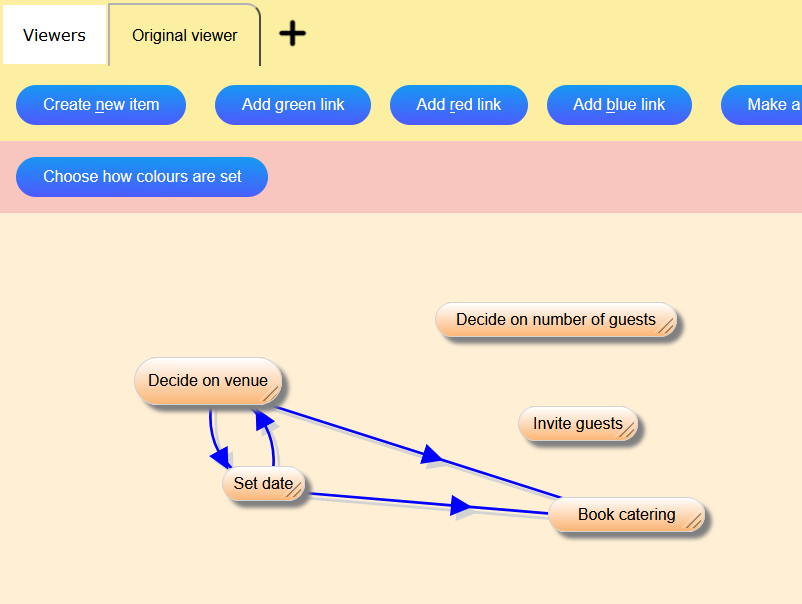
Arrows show which ideas are closely related to or are dependent on which others.
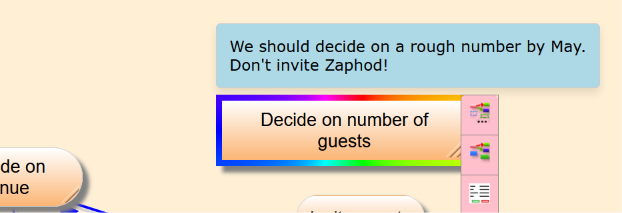
You can give each item a description, i.e. a text describing the item, which pops up when you click or tap the item:
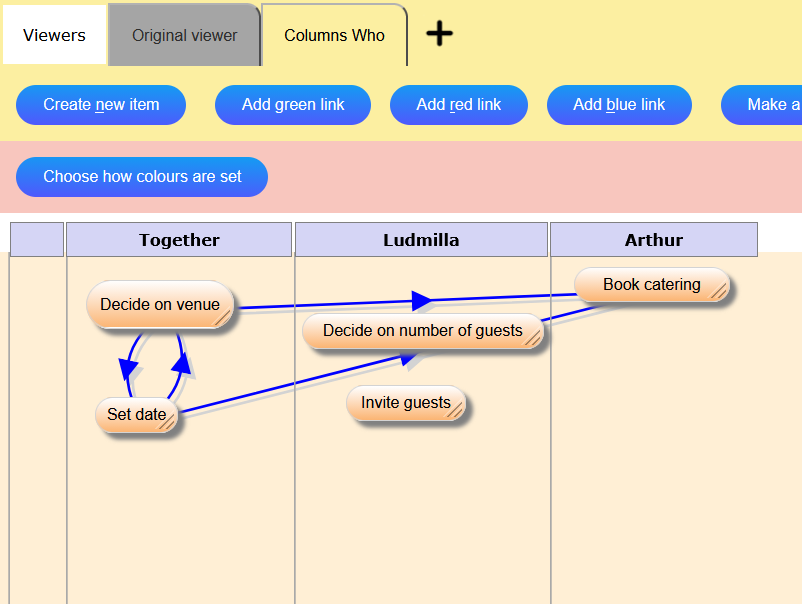
At some point, you will probably soon want to create categories of items, e.g. WHO is responsible for a task.
You can then assign each task to a person and visualise it like this:
You can also return to the original viewer and colour the items according to their value "Who":
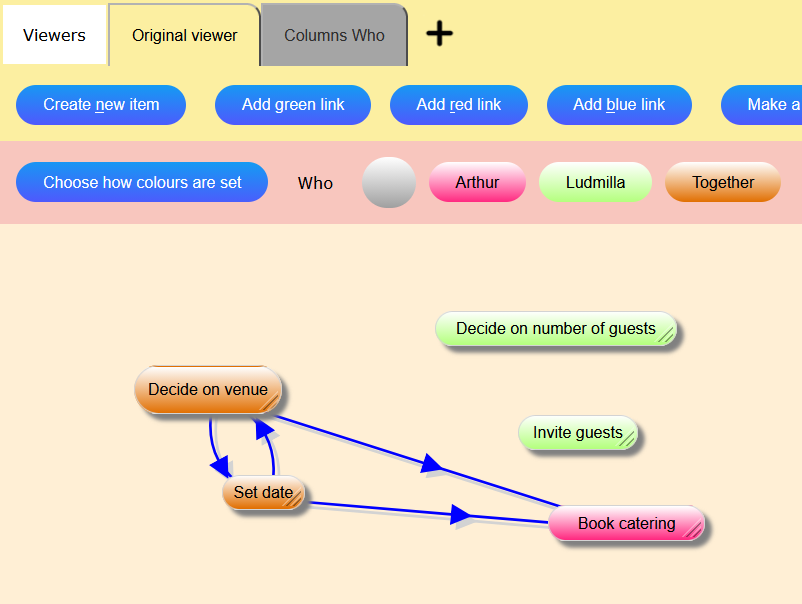
It's important to note that these two "Viewers" (the original Whiteboard and now the Column Viewer) are showing exactly the same information! It's just visualised differently.
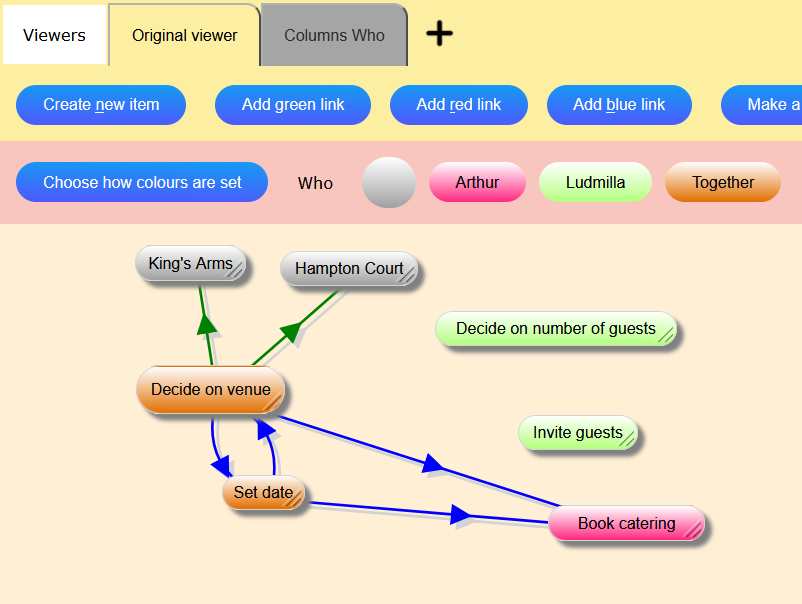
Keep adding items as you think of them, or as more possibilities present themselves:
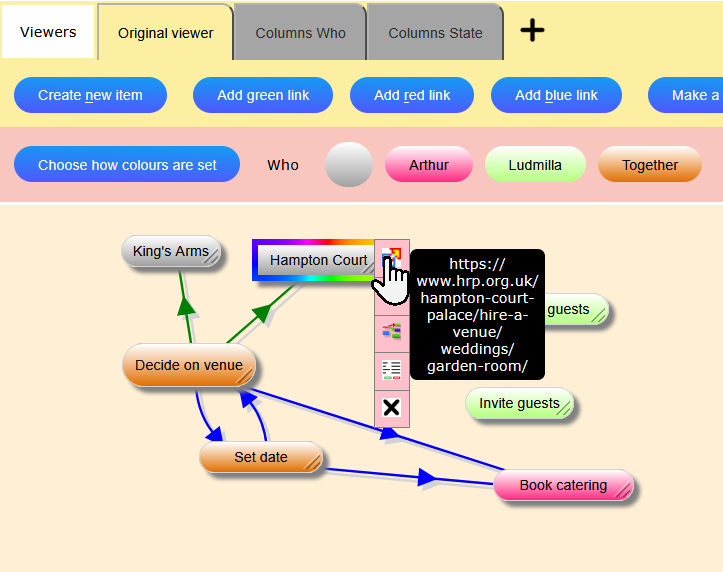
You can give each item a link to a website, file or anything else:
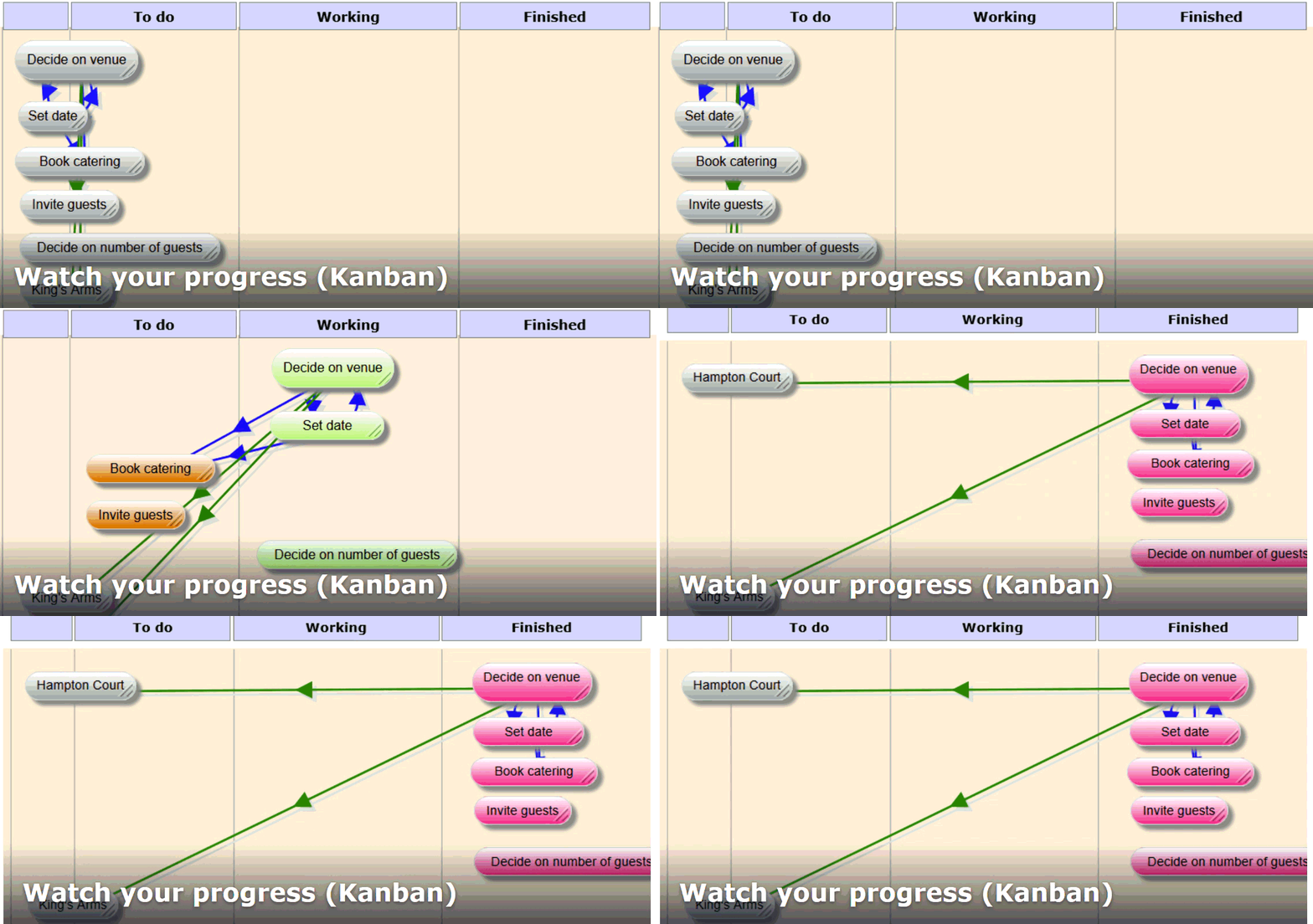
As your plans progress, you will need to visualise their "State". The progress of the planning is shown in this video:
Plans often become too full, and it is useful to filter out things which don't interest you at that moment.
SortYourThoughts contains a filter:
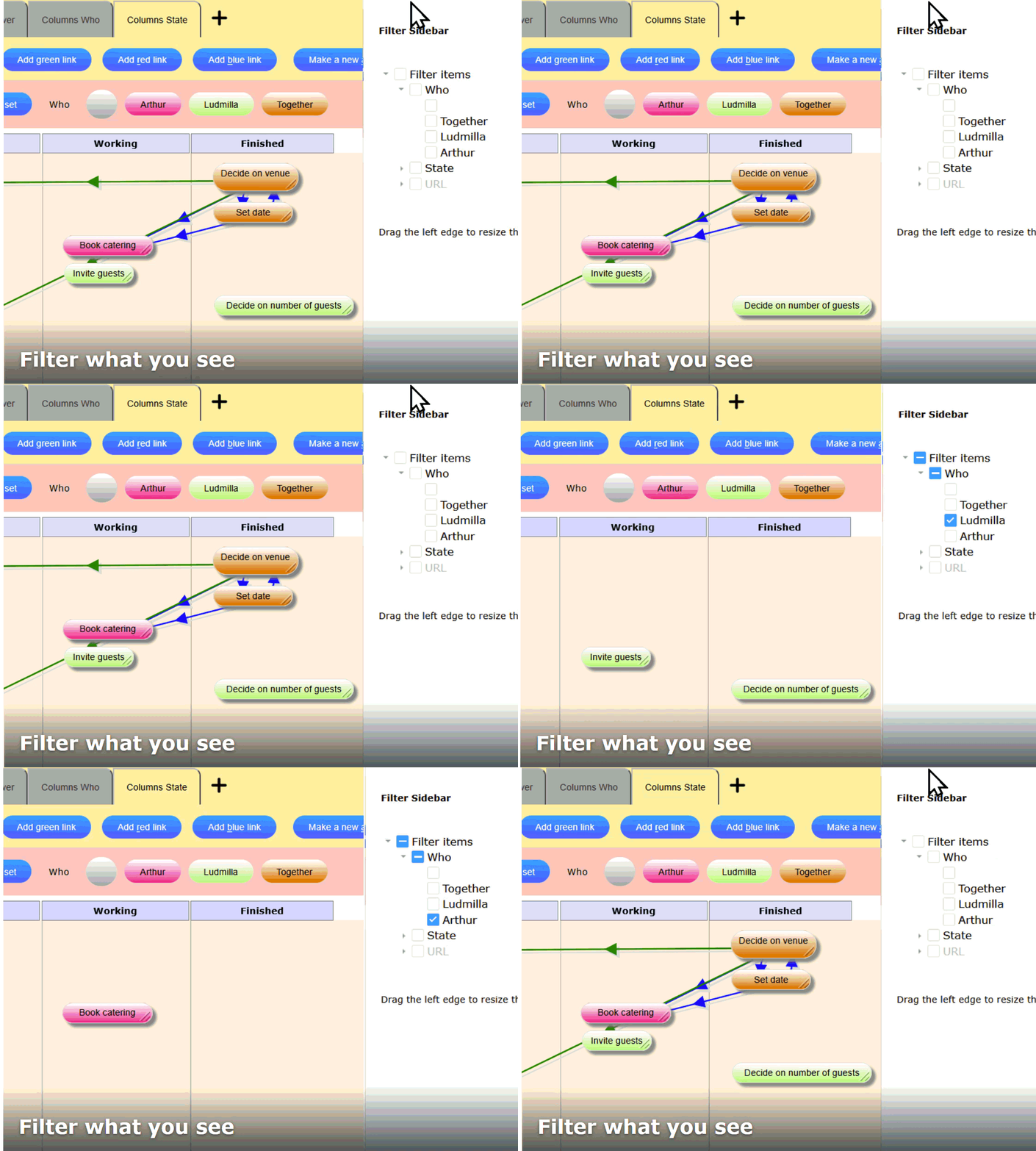
You can define up to 15 "categories" or "aspects" in SortYourThoughts like "Who", "State" and "URL". Maybe you also need a "Priority" aspect, so you can set the filter to show you just your own tasks which aren't Finished and have Priority 1.
Filtering, colouring and creating Column Viewers combine to give you an extremely powerful tool for sorting your thoughts and planning effectively and transparently.
Before you use the actual map, here are the tools used in the steps listed above:
-
Open the Filter sidebar on the right to see how your viewer is being filtered. Try out various combinations:
-
Choose the Viewer you want to see by clicking one of the grey tabs:

-
Choose the Aspect that should determine the colours of the items:
After that, create your own map by registering for free.
All content is presented as is and may not be 100% accurate or complete. If you find any inaccuracies, please email us.